Somewhere in your business there is a file called something like Orders_FINAL_v3.accdb. Someone built it years ago, probably someone who was good with computers rather than a developer. It now runs quotes, jobs, stock or customer records, and the business would stop without it. Only one or two people really understand how it works, and they get nervous when anyone mentions changing it.
That database is not a mistake. It is usually the most accurate description of how your business actually works that exists anywhere. That is exactly why replacing it goes wrong when it is treated as a data migration.
Symentic Technologies is a UK software company that builds custom operations systems for SMEs in the UK, Australia and New Zealand, and replacing spreadsheets and home-grown tools that have outgrown themselves is a large part of that work. This post is how we would think about replacing a Microsoft Access database if it were our business, including when you should not replace it at all.
First, Access is not dying
It is worth clearing this up, because a lot of advice on this topic is written to frighten you into a project.
Microsoft Access is still sold and supported. It is included in Microsoft 365 Business Standard, Business Premium and Apps for business, and Access 2024 is available as a one-time purchase. What Microsoft did retire was Access web apps: according to Microsoft's Access Services roadmap, creation of new Access web apps in Microsoft 365 and SharePoint Online stopped in June 2017 and the remaining ones were shut down by April 2018. The same page says desktop databases (.accdb files) were not affected and that Microsoft will continue to invest in them.
What has ended is support for older versions. Microsoft's lifecycle table for Office shows Office 2016 and Office 2019 reaching end of support on 14 October 2025, and Office LTSC 2021 on 13 October 2026. If your database runs on one of those, the apps keep working, but they no longer get security fixes. That is a reason to upgrade Office. On its own, it is not a reason to rebuild your database.
Signs you have actually outgrown Access
Access is a genuinely good tool for a database that a handful of people use from desktop PCs in one office. The trouble starts when the business changes shape around it. These are the signals we take seriously:
- People need it away from the office. Access is a Windows desktop application. Microsoft lists it as PC only, so staff on Macs, phones, tablets or a warehouse scanner cannot use it without workarounds.
- Someone put it on OneDrive or SharePoint. Microsoft's own guidance on sharing an Access desktop database recommends avoiding opening Access files from OneDrive or a SharePoint document library, because multiple copies can be created when more than one person opens them. If that is how remote staff get in, you have a reliability problem already.
- Corruption and "compact and repair" are routine. Occasional repairs happen. Weekly ones mean the database is being asked to do something it was not set up for.
- It is approaching the size limit. Microsoft's Access specifications cap a database file at 2 GB including all objects. You can link several files together to work around it, but if you are doing that, the design is telling you something.
- It needs to talk to other systems. Orders need to reach Xero, customers want a portal, suppliers want purchase orders by email. Every one of those becomes a manual export.
- One person holds the VBA in their head. If the person who wrote the macros left tomorrow, could anyone change the invoice logic safely? We wrote about that exact situation in your developer disappeared, your software didn't.
If none of these apply, keep the database. Tidy it, back it up, put it on a supported version of Office, and spend your money elsewhere.
Why replacing Access goes wrong
The tables are the easy part. Microsoft provides a free tool, SQL Server Migration Assistant for Access, that moves Access tables and data into SQL Server or Azure SQL. But Microsoft's own migration guide is clear about its scope: it mainly migrates tables and select queries without parameters. Forms, reports, macros and VBA modules are not converted.
Those unconverted parts are where your business lives. In a typical home-grown Access system, the rules hide in places like these:
- Form events. "When the status changes to Dispatched, set the date and email the customer" is a few lines of VBA behind a button that nobody has looked at in five years.
- Validation rules and default values. Which fields are required, what a new job number looks like, which discount applies to which customer type.
- Saved queries. A query called
qryInvoiceTotals_new2may be the only place your actual pricing calculation is written down, and it may disagree withqryInvoiceTotals. - Reports. The delivery note format a key customer insists on, or the month-end report your accountant relies on.
- Workarounds. The field labelled
Notes2that the team actually uses to flag credit holds.
A replacement that copies the data but misses these rules will look finished in a demo and fail in the first week of real use, because the people using it notice immediately that it no longer does the things they relied on. That is how a replacement project ends up with the old Access file quietly running alongside it for another two years.
Your realistic options
There is no single right answer. Here is a fair comparison of the main routes.
| Option | Good fit when | Watch out for |
|---|---|---|
| Keep Access, tidy it up | A few users, one office, stable process | Supported Office version, a split database and tested backups |
| Keep the Access front end, move the data to SQL Server or Azure SQL | You need more capacity and reliability but the forms work well | Still Windows-only for users, and the VBA still needs maintaining |
| Rebuild in Power Apps | You are committed to Microsoft 365 and the process is fairly simple | Microsoft points Access web app users here; check per-user licensing and how complex your rules really are |
| Buy an off-the-shelf product | Your process is standard for your sector | Paying for a product and then rebuilding a spreadsheet beside it |
| Custom web application | The process is how you compete, many people and devices need it, and it must connect to other tools | Needs a proper discovery of the existing rules first, and a phased plan |
We build the last option, so weigh our view accordingly. But we would rather tell you early that a supported Access setup or an existing product will do the job. We made the same argument about spreadsheets in you already built custom software, it's a spreadsheet.
How we would replace an Access database
If the decision is to move off Access, this is the order we would do it in.
1. Inventory what the database actually does
Before anyone designs a new screen, list every table, query, form, report, macro and VBA module, and note which ones are still used. Then sit with the people who use it and watch an order, job or request go through from start to finish. The goal is a written list of business rules in plain English, each one traced to where it lives in the database today.
This step is the whole project in miniature. Done properly, it usually finds rules nobody mentioned, and dead features nobody needs to rebuild.
2. Clean the data before you move it
Access is forgiving in ways a proper database server is not. Expect to find tables with no primary key, duplicate customers spelled three different ways, dates stored as text, and free-text fields doing the job of a status. Microsoft's migration guide recommends making sure every table has a primary key and an index before moving it. Decide the clean-up rules with the people who own the data, not just the developer.
3. Design around the workflow, not the old screens
The old forms reflect what was possible in Access at the time, not necessarily how the work should flow. Keep the rules. Rethink the screens. This is where the payoff comes from: one record everyone works from, statuses that move with the work, and the steps that used to be exports becoming integrations instead. Our post on fewer handoffs covers that thinking in more detail.
4. Move in phases, not a weekend cutover
A big-bang switchover asks your team to learn a new system and trust it on the same Monday. A safer pattern is to move one workflow at a time. Where it helps, the existing Access front end can be linked to the new database during the transition, so some people keep using familiar forms while others move to the new system. Each phase should be something the team can use on its own.
5. Run in parallel, then retire the file properly
For the first workflow, compare outputs between old and new for real orders or jobs, especially anything involving money. Once everyone agrees the new system is right, make the Access file read-only, keep an archived copy for your records, and remove it from shared drives so nobody keeps editing it out of habit.
Do not swap one dependency for another
The reason many Access databases became risky is that only one person could change them. A replacement should fix that, not move the risk to a new supplier. Whoever builds it, the code, the database, the hosting accounts and the documentation should be in your business's name, and another competent developer should be able to pick it up. Our guide to what you should own covers what to check before you sign.
If the database holds personal data about customers or staff, the move is also a good moment to check who can access it and how it is backed up. Moving data between systems does not change your obligations under the UK GDPR, Australia's Privacy Act 1988 or New Zealand's Privacy Act 2020. This post is practical guidance rather than legal advice.
Questions to ask whoever replaces it
- How will you find the business rules inside our forms, queries and VBA, and will we get them in writing?
- Which parts of the database do you think we do not need to rebuild, and why?
- How will you clean and check the data, and who signs it off?
- What is the first phase, and can our team use it on its own?
- How will we prove the new system gives the same answers as the old one before we switch?
- Will the code, database and hosting be in our name?
A supplier who answers the first question with "we'll just migrate the tables" has not understood the job.
What this looks like with us
We start with an AI Workflow Blueprint: a 60 to 90 minute session following a real order, job or request through your business, including through the Access database, followed by a written workflow map, a proposed system, a basic prototype and a fixed-price proposal. The introductory price is £300 to £600, credited toward development if you go ahead. Builds then run in fixed-price phases, typically starting at £3,000 to £10,000, and you own the code, infrastructure and documentation. If the honest answer is that your Access database just needs tidying up, we will tell you that. For wholesalers, our wholesale operations page shows what a typical first phase covers.
FAQ
Is Microsoft Access being discontinued?
No. Access is still included in several Microsoft 365 business plans and is available as Access 2024. Microsoft retired Access web apps in Microsoft 365 and SharePoint Online in 2018, but says desktop databases were not affected. Older versions such as Access 2016 and 2019 are out of support, so upgrade Office if you are on one of them.
Can I migrate an Access database to SQL Server?
Yes. Microsoft's free SQL Server Migration Assistant for Access moves tables and data to SQL Server or Azure SQL, and can link your existing Access front end to the new tables. It does not convert forms, reports, macros or VBA, so the application logic needs separate work.
Can Microsoft Access run on a Mac or in a browser?
Not natively. Microsoft lists Access as PC only, and Access web apps were retired in 2018. Mac users need Windows running in a virtual machine, and browser or mobile access needs a different system on top of the data.
Can several people use an Access database at the same time?
Yes. Microsoft recommends splitting the database into a shared back-end file on the local network and a front-end copy on each user's PC. Microsoft advises against opening Access files from OneDrive or a SharePoint document library, because multiple copies can be created.
What is the maximum size of an Access database?
Microsoft specifies 2 GB per .accdb or .mdb file, including all database objects and data. Linking tables across several files can work around it, but a database close to that limit is usually a sign it needs a proper database server.
How long does it take to replace an Access database?
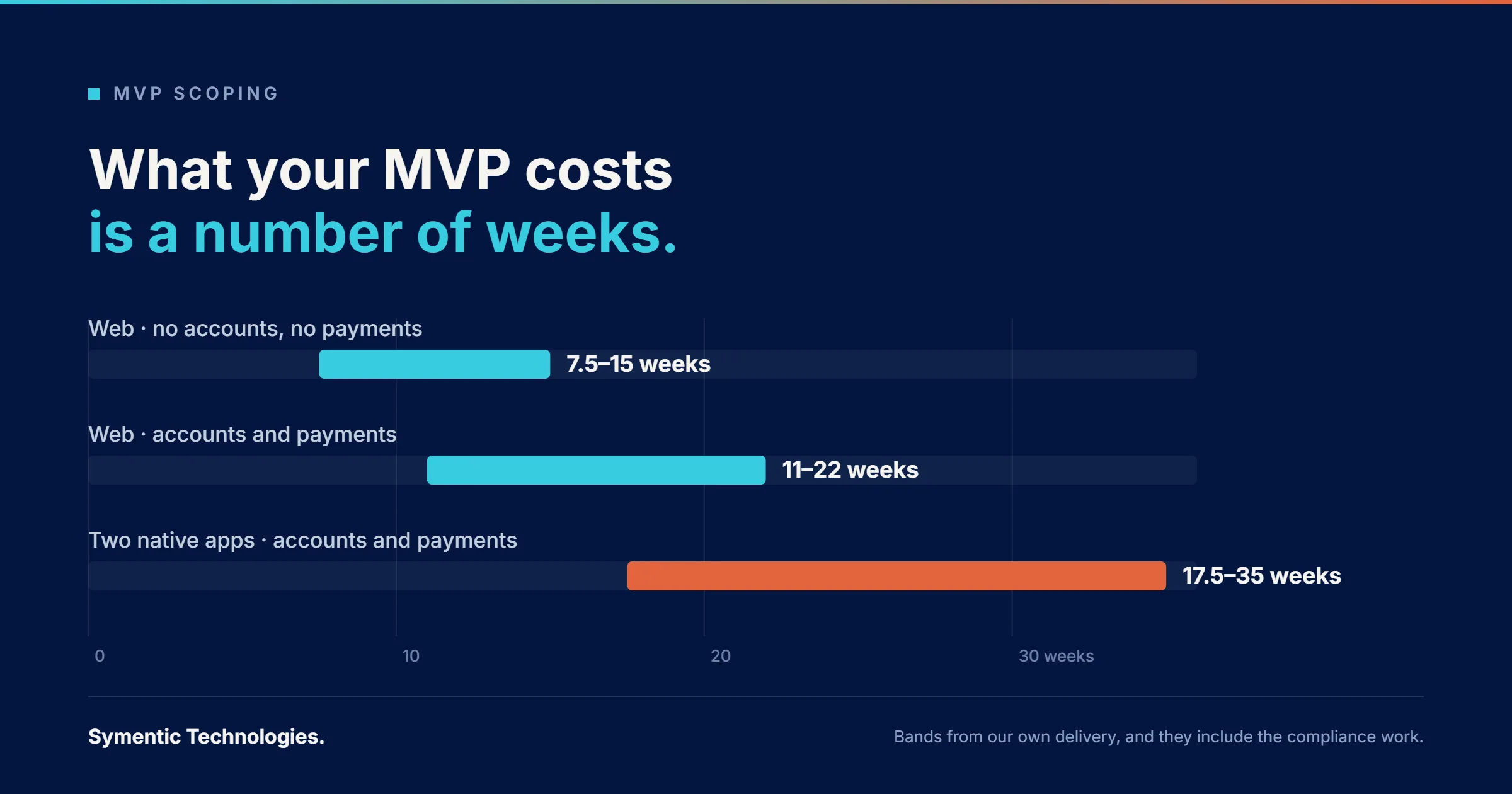
It depends far more on how many business rules are hidden in the forms and code than on how much data there is. A proper inventory of what the database does is the only honest basis for a timeline. Our guide to estimating software in developer-weeks explains how to think about it.
The short version
Access is not dying, and a database that a few people use in one office may be fine where it is. Replace it when people need it from other devices or places, when it needs to connect to other systems, or when only one person can safely change it. When you do, remember the data is the easy part. Inventory the rules hidden in forms, queries and VBA, clean the data, design around the workflow, move in phases, prove the new system gives the same answers, and keep everything in your own name.
Still running the business on an Access database? Book a 30-minute discovery call and walk us through how an order, job or request moves through it today. We will tell you honestly whether to keep it, upsize it or replace it. You can also see what we've built or get in touch by email.
Related reading: You already built custom software. It's a spreadsheet. · Your developer disappeared. Your software didn't. · Your ops system and Xero should agree · Every supplier looks the same until you try to leave